
Update Blueprint
New Blueprint versions bring fixes and new features. Updating usually takes a couple of minutes, but some versions also need small changes in your project. This page tells you which ones.
Step 1: Find your version and the latest one
Section titled “Step 1: Find your version and the latest one”-
Your version is in
buildSrc/src/main/java/Versions.kt:const val blueprint = "x.x.x" -
The latest version is:
(ignore the
v).
Step 2: Apply the changes for each version, in order
Section titled “Step 2: Apply the changes for each version, in order”Look at the list below. Starting from the version right after yours, apply each version’s changes, one version at a time, until you reach the latest.
For example, if you’re on 2.3.0 and the latest is 2.3.7, apply 2.3.1, then 2.3.2, and so on. If a version isn’t listed, it doesn’t need any changes, so skip it.
Most entries link to a commit, a page on GitHub that shows what changed in each file. It looks like this:
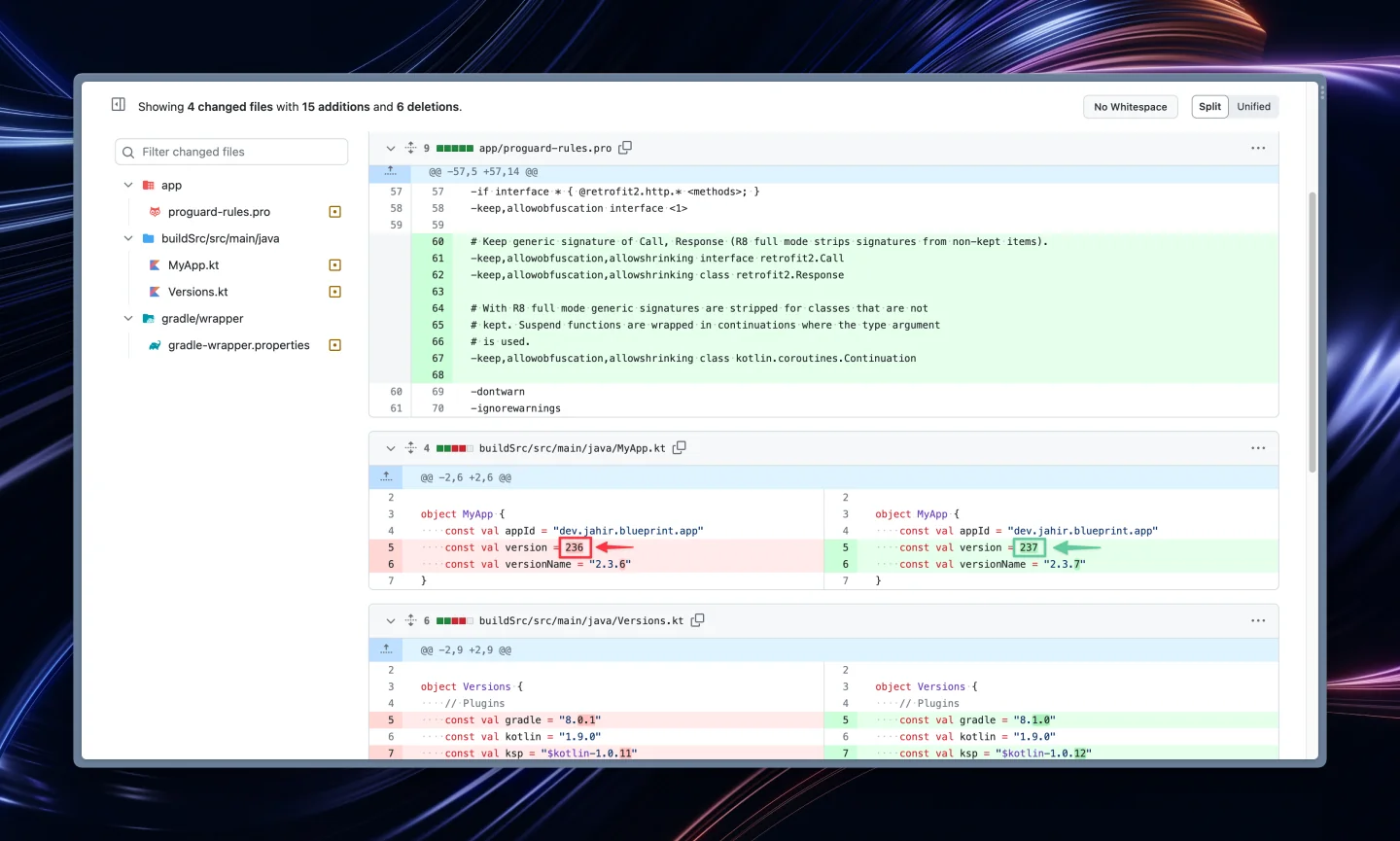
- Red lines were removed. Delete them from your file.
- Green lines were added. Add them to your file.
- When only part of a line changed, that part is highlighted in a darker color.
Make the same changes in your project. You can skip changes to files you’ve customized with your own content, like icons, wallpapers or texts, unless the entry says otherwise.
Step 3: Update the version number
Section titled “Step 3: Update the version number”Set blueprint in Versions.kt to the latest version, then click File → Sync Project with Gradle Files and run your app to check that everything works. 🚀
Stuck on a version? Ask in the Discord server, and mention which version you’re updating from.
Changes for each version
Section titled “Changes for each version”v2.6.0
Section titled “v2.6.0”Apply the changes in this commit.
v2.5.1
Section titled “v2.5.1”Apply the changes in this commit and this commit.
v2.5.0
Section titled “v2.5.0”Apply the changes in this commit.
v2.4.4
Section titled “v2.4.4”Apply the changes in this commit.
v2.4.3
Section titled “v2.4.3”Apply the changes in this commit.
v2.4.2
Section titled “v2.4.2”Apply the changes in this commit.
v2.4.1
Section titled “v2.4.1”Apply the changes in this commit.
v2.4.0
Section titled “v2.4.0”Apply the changes in this commit.
v2.3.9
Section titled “v2.3.9”Apply the changes in this commit.
v2.3.7
Section titled “v2.3.7”Apply the changes in this commit.
v2.3.6
Section titled “v2.3.6”Apply the changes in this commit.
v2.3.5
Section titled “v2.3.5”Apply the changes in this commit.
v2.3.4
Section titled “v2.3.4”Apply the changes in this commit.
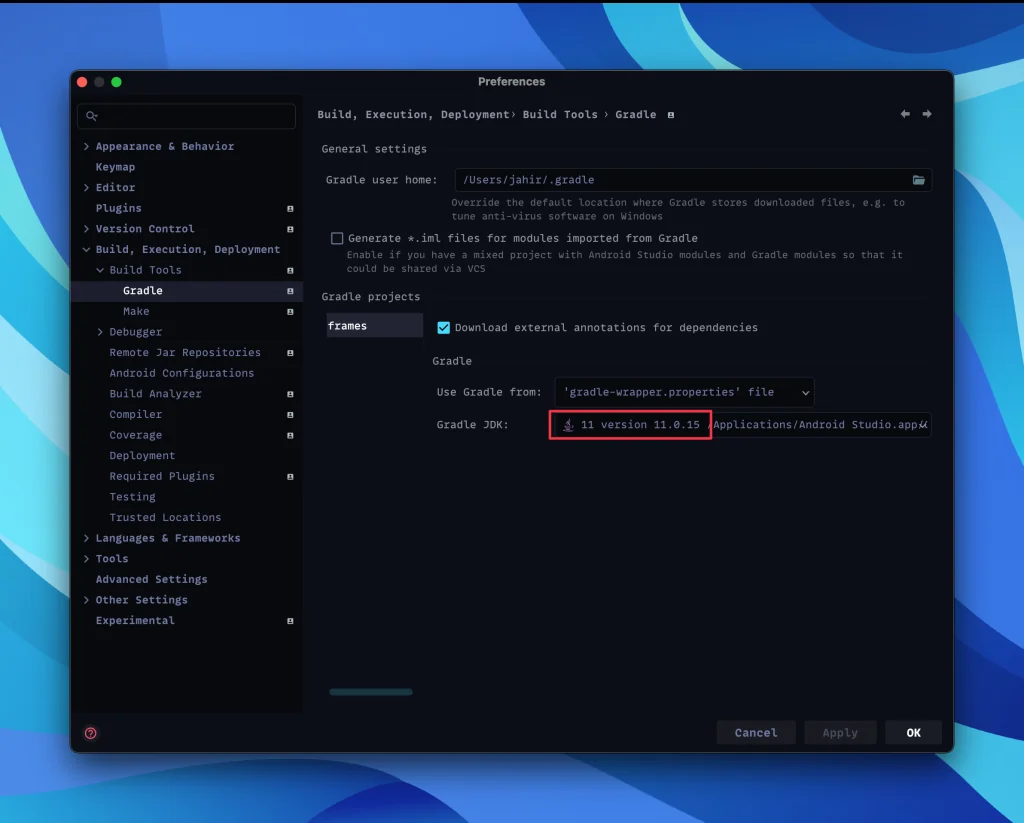
Also update the Gradle settings in Android Studio, as shown here:
v2.3.0
Section titled “v2.3.0”Apply the changes in this commit.
v2.2.8
Section titled “v2.2.8”Apply the changes in this commit.
v2.2.6
Section titled “v2.2.6”Apply the changes in this commit.
v2.2.5
Section titled “v2.2.5”Apply the changes in this commit.
v2.2.4
Section titled “v2.2.4”Apply the changes in this commit.
v2.2.3
Section titled “v2.2.3”Apply the changes in this commit.
v2.2.2
Section titled “v2.2.2”Apply the changes in this commit.
v2.1.8
Section titled “v2.1.8”Apply the changes in this commit.
v2.1.5
Section titled “v2.1.5”Apply the changes in this commit.
v2.1.4
Section titled “v2.1.4”Apply the changes in this commit.
v2.1.1
Section titled “v2.1.1”Apply the changes in this commit.
v2.1.0
Section titled “v2.1.0”Add <item>oneplus</item> to supported_launchers.xml
v2.0.6
Section titled “v2.0.6”- Apply the changes in this commit.
- You can now change the colors of snackbars. Set them up in your
colors.xmlfile
v2.0.2
Section titled “v2.0.2”Optional: if you want more customization options, apply the changes in this commit.
v2.0.0
Section titled “v2.0.0”The dashboard was rewritten from scratch, so it’s easier to start a new project from the sample. Save your assets, icons and XML files first: most of them still work.
Older versions
Section titled “Older versions”Show older versions
v1.4.9 and v1.5.0
Section titled “v1.4.9 and v1.5.0”Apply the changes in this commit and this commit.
v1.4.2
Section titled “v1.4.2”Apply the changes in this commit.
v1.4 and newer
Section titled “v1.4 and newer”Apply the changes in this commit.
Then delete the folder .idea/libraries/ and all build folders, and then restart Android Studio using the Invalidate Caches and Restart option.
v1.3.0
Section titled “v1.3.0”Apply the changes in this commit.
v1.2.9
Section titled “v1.2.9”Provide links for your Privacy Policy and/or Terms and Conditions in order to avoid issues with Play Store. Generate them here.
v1.2.8
Section titled “v1.2.8”Update the app/build.gradle, launchers.xml and dependencies.gradle files.
v1.2.7
Section titled “v1.2.7”Update your AndroidManifest.xml as done in this commit.
v1.2.6
Section titled “v1.2.6”Update the app/build.gradle and dependencies.gradle files.
v1.2.4
Section titled “v1.2.4”Apply the changes in this commit.
v1.2.3
Section titled “v1.2.3”Apply the changes in this commit.
v1.2.0
Section titled “v1.2.0”Apply the changes in this commit.
v1.1.8
Section titled “v1.1.8”Apply the changes in this commit.
v1.1.5
Section titled “v1.1.5”Apply the changes in this commit. Basically just some minor version updates :wink:
v1.1.4
Section titled “v1.1.4”Apply the changes in this commit. Basically just some minor version updates.
v1.1.3
Section titled “v1.1.3”- There’s a new
launchers.xmlfile where you can remove the launchers you don’t want to show in the “Apply” section. - There’s a new
boolconfig inblueprint_configs.xmlin case you want to hide the “General Information” in “Home” section.
v1.1.1
Section titled “v1.1.1”- Update your build.gradle to match the new
app/build.gradlefile - Update the proguard files:
v1.0.4
Section titled “v1.0.4”Update the proguard-rules.pro file.
Made by Jahir Fiquitiva. Questions? Ask in the Discord server.