
Guide · Frames
How to create an Android wallpaper app
You have a set of wallpapers and want people to download and apply them from an app of your own, with your name and colors.
You don’t have to build that app from scratch. Frames is a free and open source template I made for wallpaper apps. It gives you a complete app, so you can spend your time on the wallpapers instead of the code.
What Frames gives you
- Wallpapers load from a file on the web, so you can add new ones without publishing an app update.
- Wallpapers are cached, so users can keep seeing them when they’re offline.
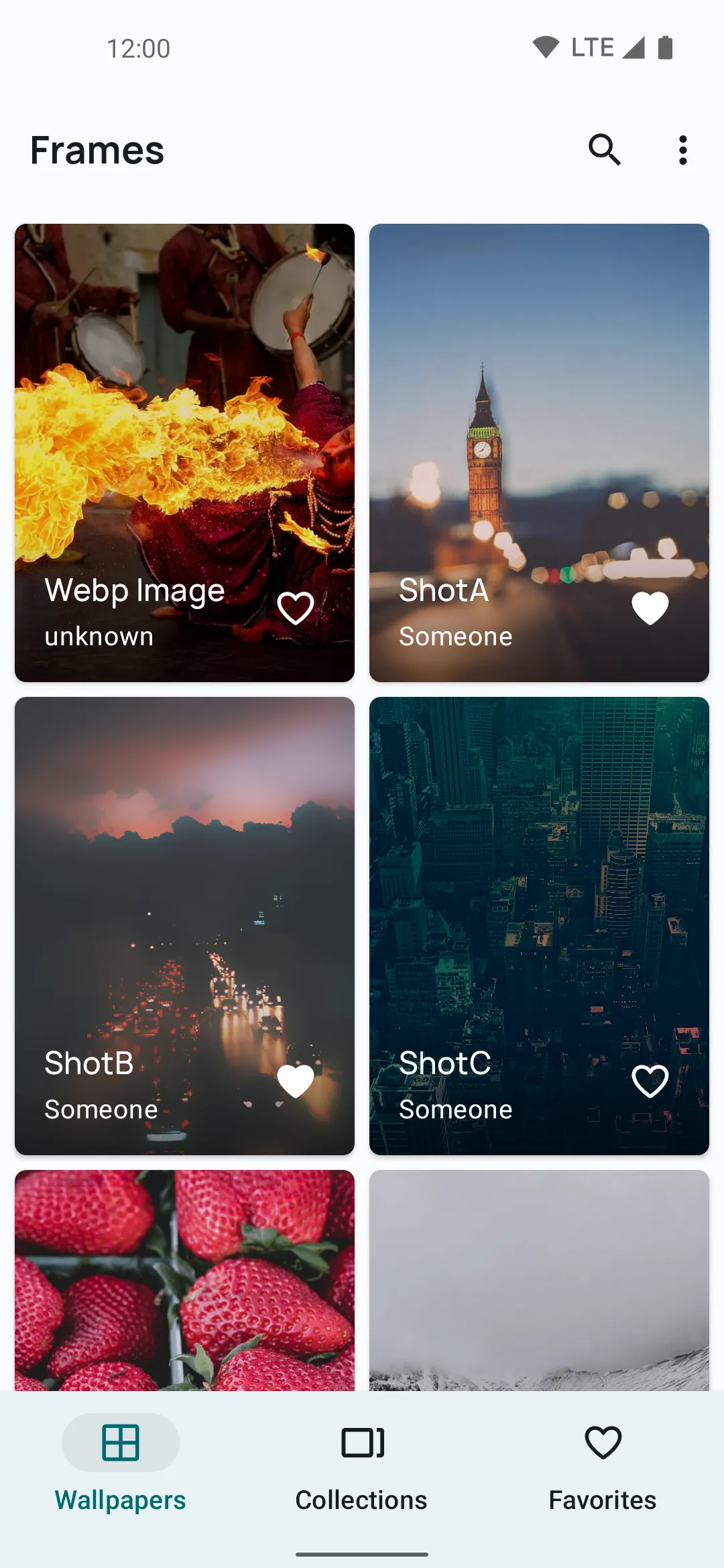
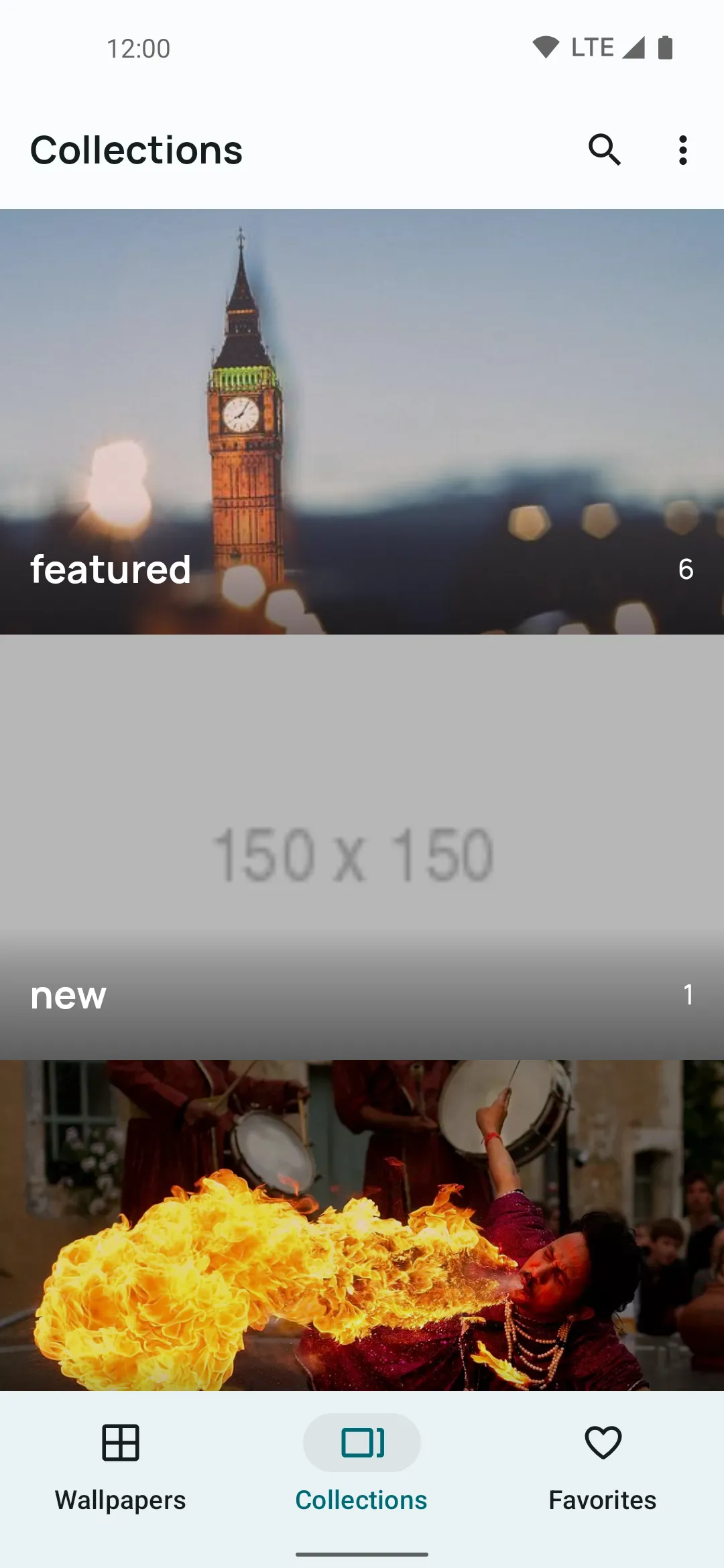
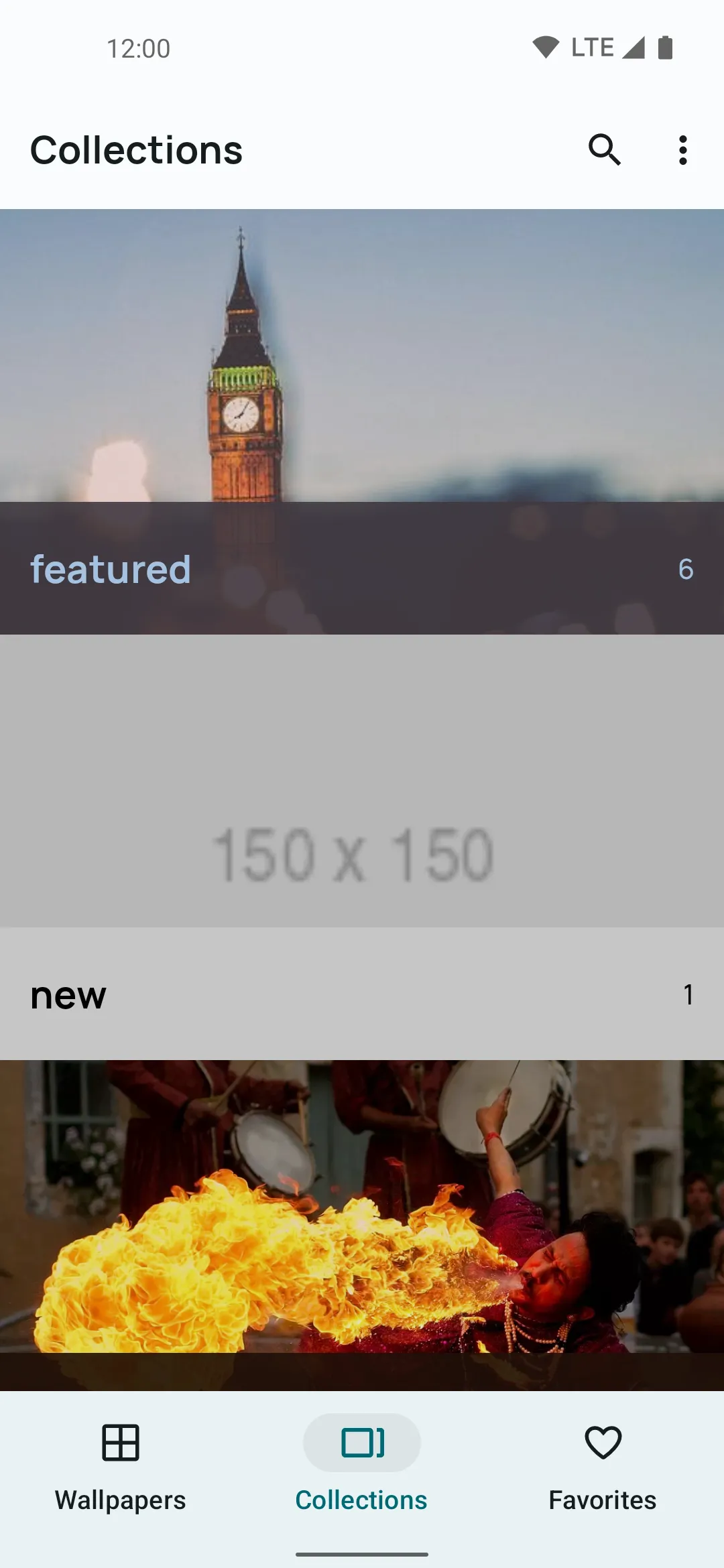
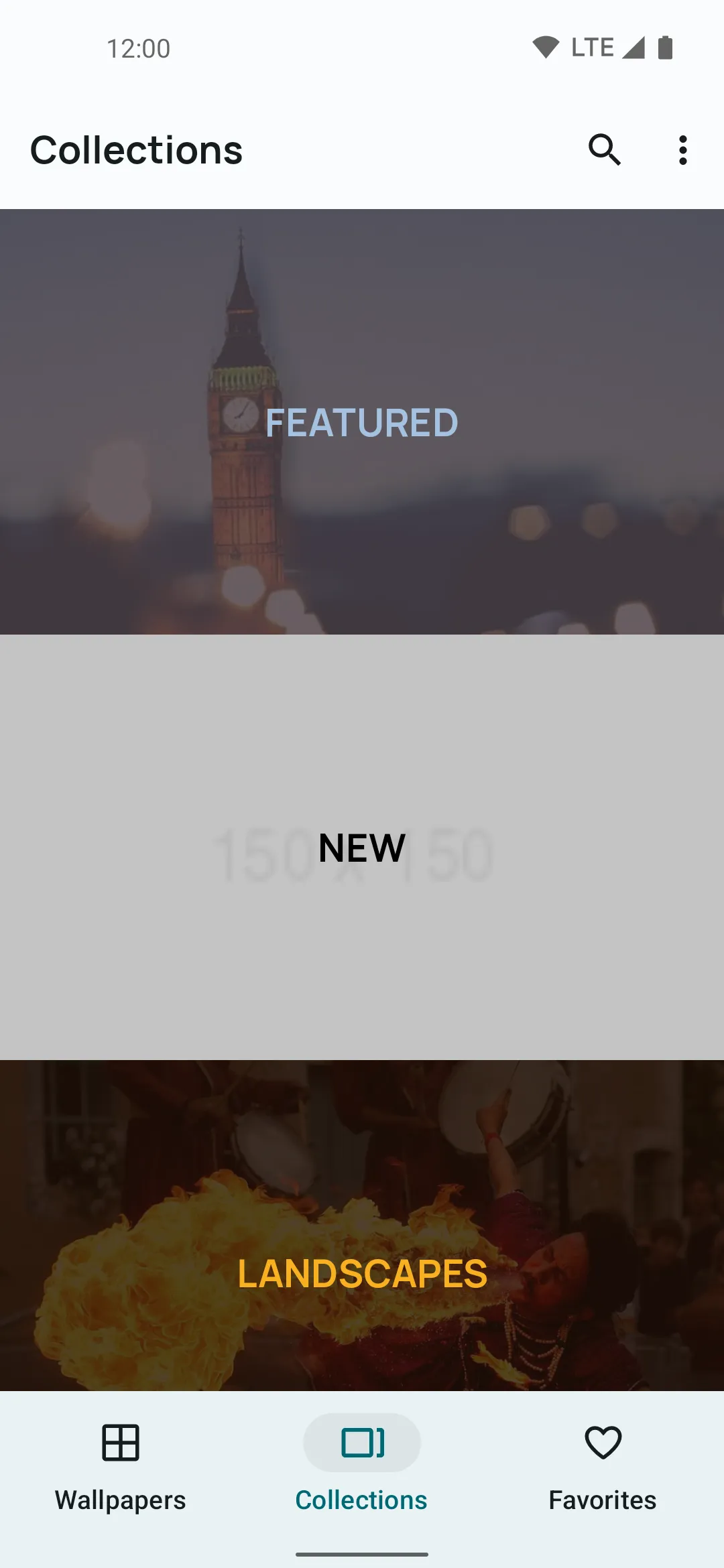
- Collections, and favorites for quick access.
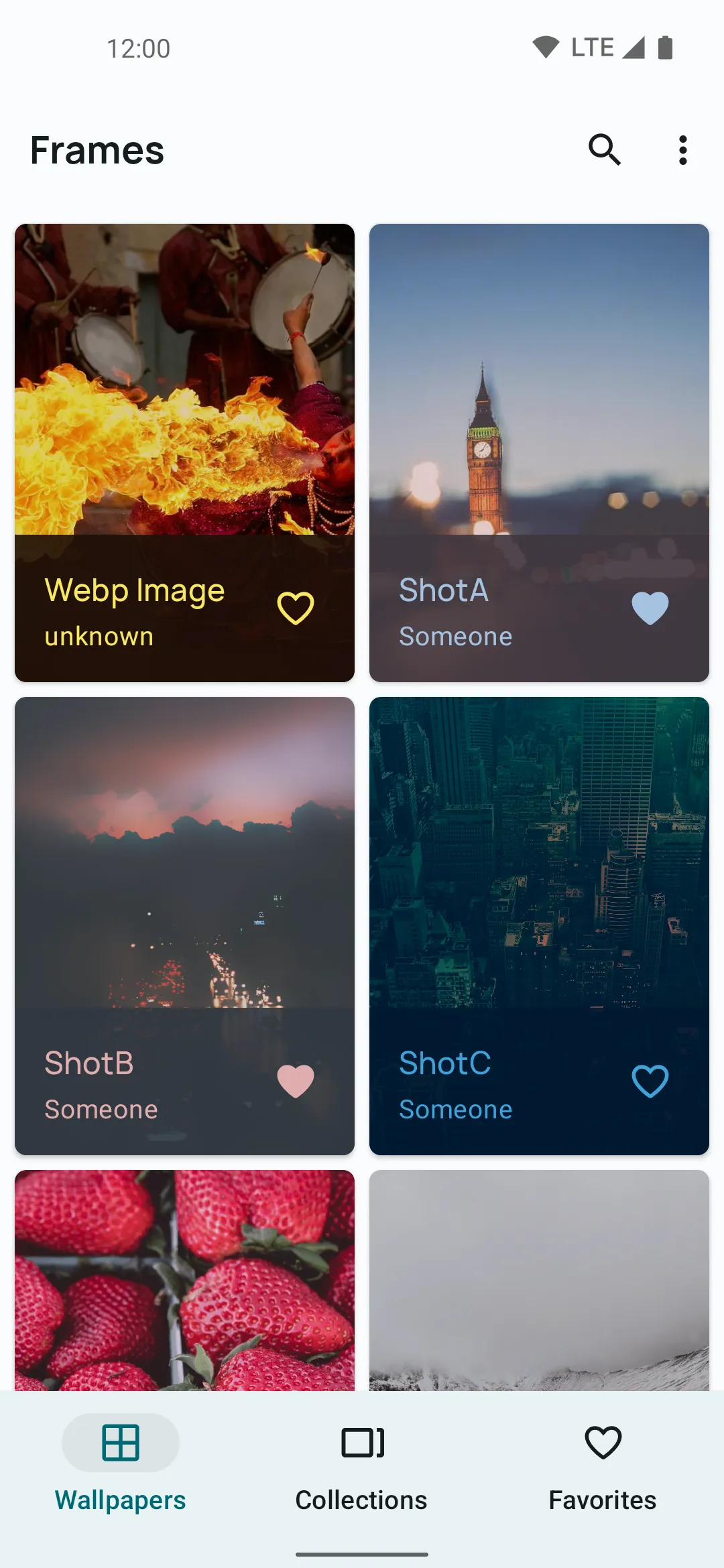
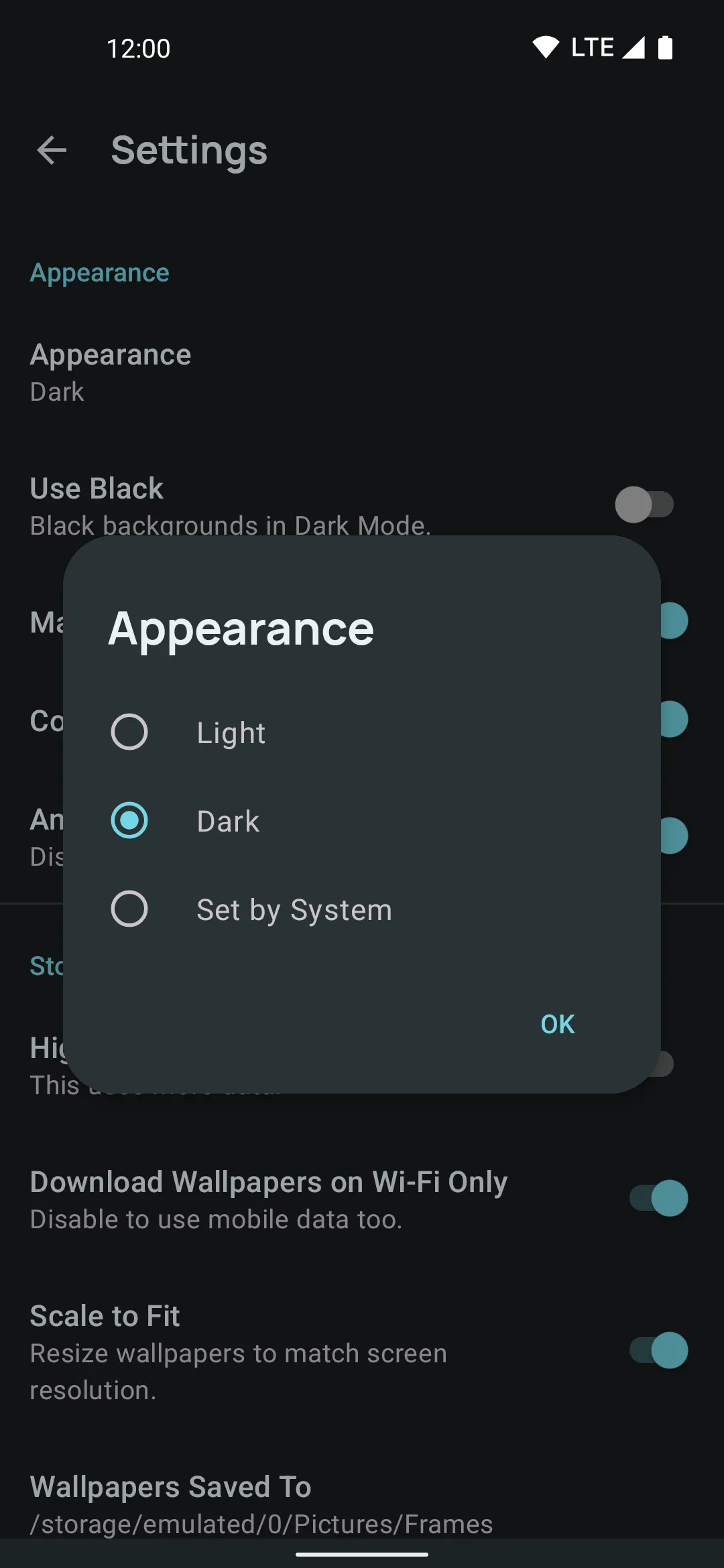
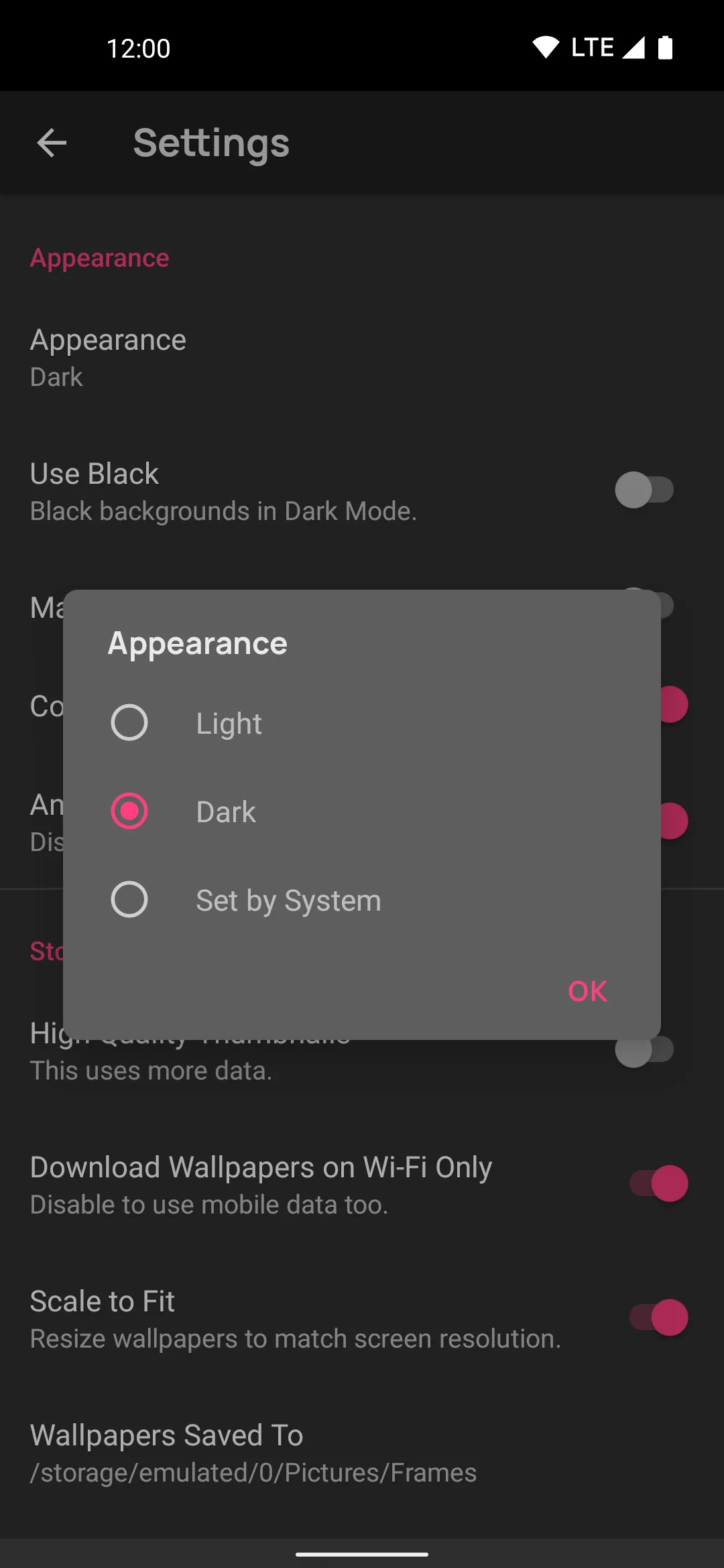
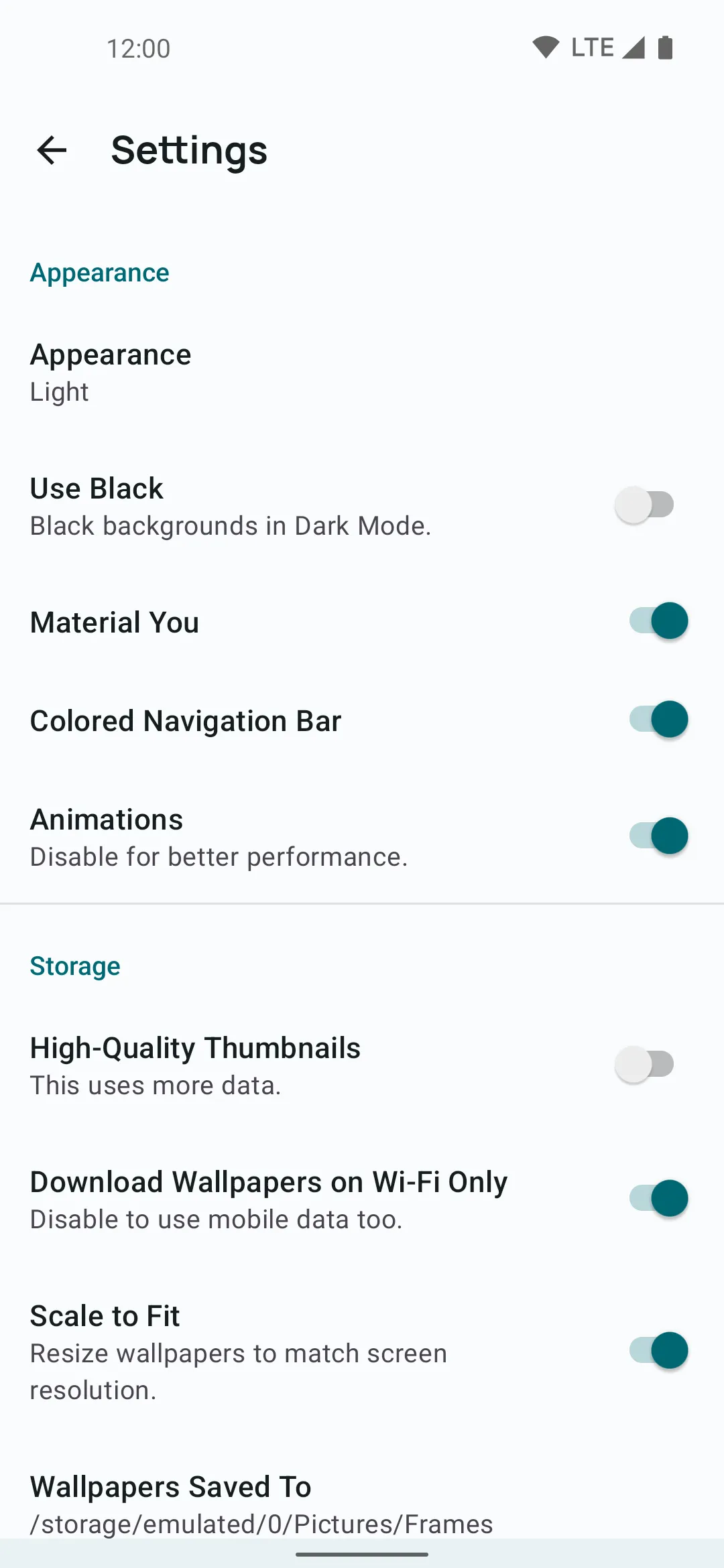
- Light, dark and AMOLED themes, plus Material You.
- A license check, to make sure users downloaded your app from a trusted source.
- Donations and push notifications, if you want them.
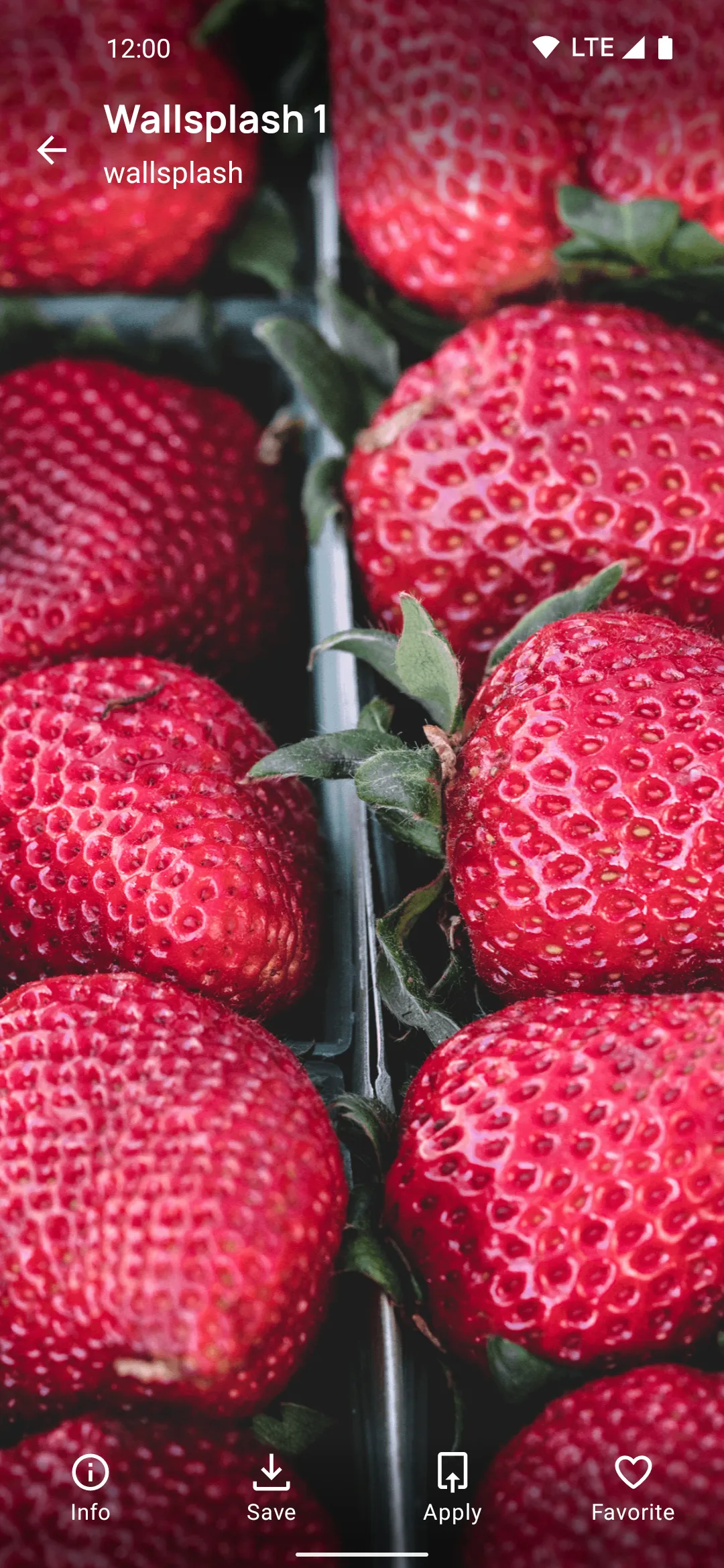
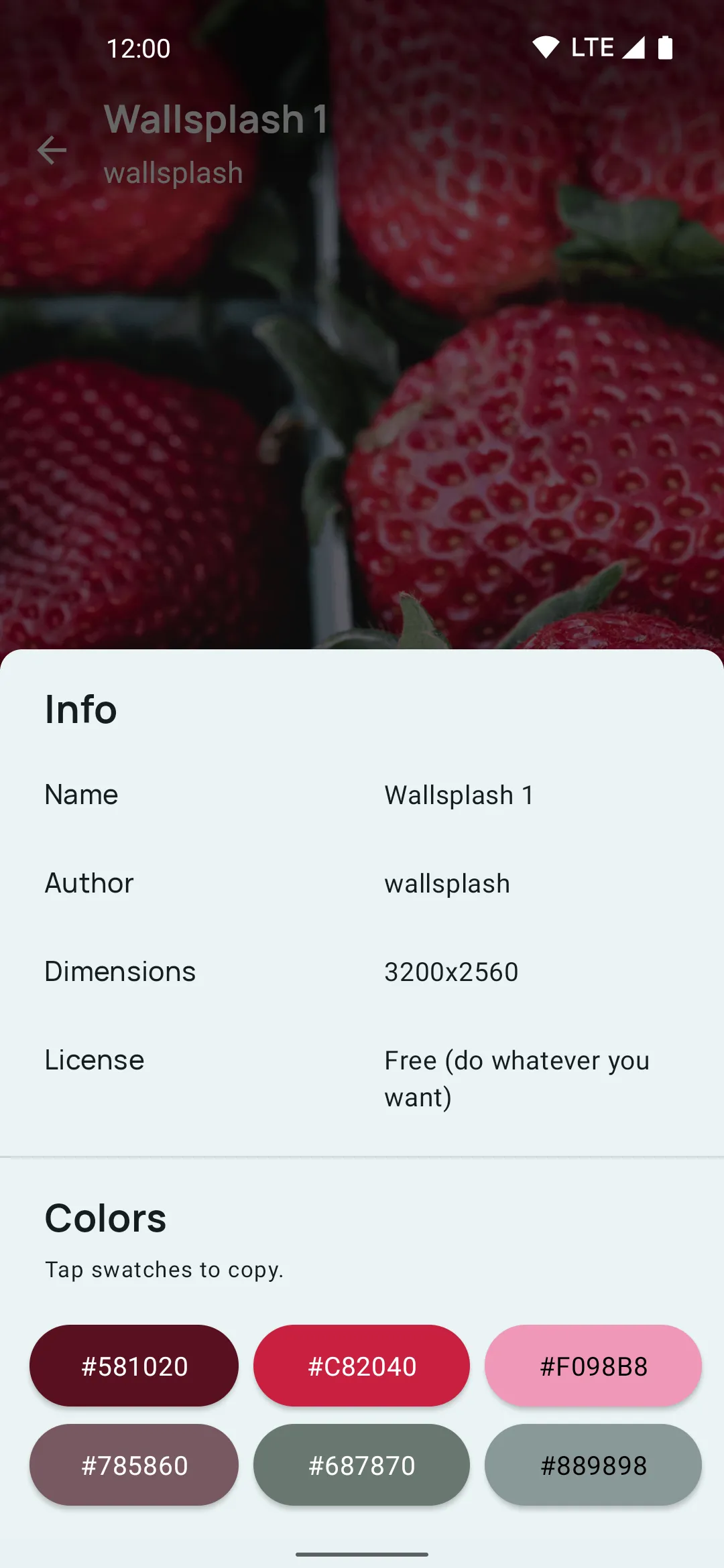
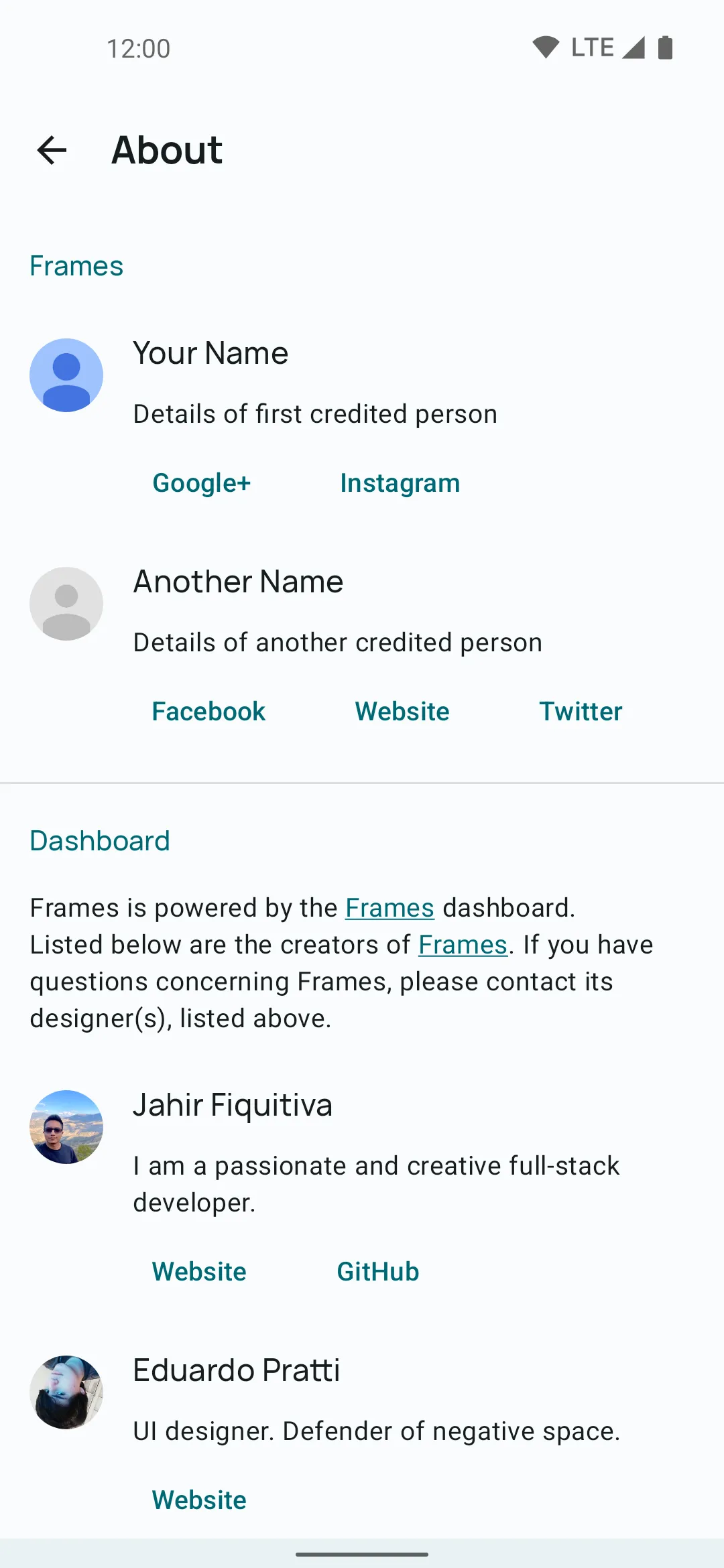
What it looks like
What you need
- Android Studio, the free app Google provides to build Android apps.
- An Android phone, or an emulator that Android Studio creates for you.
- Your wallpapers, uploaded somewhere online, like a GitHub repository.
- A Google Play developer account, but only when you’re ready to publish.
You don’t need to be an Android developer. Most of the setup is editing a few text files.
Step 1: Download and run the sample
Download the Frames sample project, open it in Android Studio and run it on your phone. If the sample opens before you change anything, your setup works. Get Started walks you through it.
Step 2: Set your package name
The package name is your app’s unique ID on Google Play, like com.yourname.walls. Change it before anything else, because the other steps assume it’s done: Set Package Name.
Step 3: List your wallpapers
Frames reads your wallpapers from a JSON file: a small text file with each wallpaper’s name and image link. You upload it online, and the app downloads it every time it opens. That’s why new wallpapers show up without an update: Add Wallpapers.
Step 4: Configure your app
Your app’s name, colors, the link to your JSON file and every other setting live in XML files. Instead of editing them by hand, open the Frames setup app, change what you need and download the files ready to copy into your project. Every other option keeps its default, so you can come back and change anything later.
Step 5: Publish on Google Play
Build a release version of your app in Android Studio and upload it to the Google Play Console. Google’s Publish your app guide explains both.
From then on, adding wallpapers only means updating your JSON file.
Need help?
Please ask in the Discord server. The Frames wiki has a page for every setting.